Clean This
20 MARCH 2011
Overall Risk Level: 
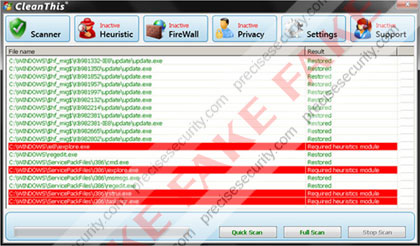
Clean This or also known as the CleanThis virus is believed to be another variant of widely-spread rogue application called Think Point. Clean This will be introduced as a real anti-virus application on web sites that were created for promotional purposes. An associated Trojan is also propagated earlier to infect web sites and build them to automatically run a virus scan on visitors computer. This online scan will provide fake detection and advise users to download and install a copy of Clean This program. Innocent users may not easily identify it as a threat because it will pretend to care for the system and was created to have a pleasant graphical user interface. Most of all it may turn out that it was part of the Windows operating system.
Victims may suffer from obstruction in using the PC when Clean This virus starts to display excessive alerts and taskbar warning messages. It will also block any programs from running and declared that the file is infected. An advise to clean the computer will constantly pop-up, if executed, a new browser window will open and suggest to buy the registration key of Clean This by paying using credit card information. Don’t get deceived by this rogue application, start scanning the computer with the recommended security application below. This was known to remove any forms of malicious software including Clean This virus.
Screen Shot Image:
Damage Level: Medium
Systems Affected: Windows 9x, 2000, XP, Vista, Windows 7
CleanThis Removal Procedures
Manual Removal:
1. Press Ctrl+Alt+Del on keyboard to stop process associated to “CleanThis”. When Windows Task Manager opens, go to Processes Tab and find and end the following process:
(hotfix.exe)
1. Press Ctrl+Alt+Del on keyboard to stop process associated to “CleanThis”. When Windows Task Manager opens, go to Processes Tab and find and end the following process:
(hotfix.exe)
2. You need to update your installed antivirus application to have the latest database.
3. Thoroughly scan the computer and any detected threats must be removed. If removal is prohibited, it is best to quarantine the infected item. Manually locating and deleting of malicious files should also be performed. Please see files below that are related to CleanThis Virus.
4. Registry entries created by CleanThis must also be remove from the Windows system. Please refer below for entries associated to the rogue program. [how to edit registry]
5. Exit registry editor.
6. Get rid of CleanThis start-up entry by going to Start > Run, type msconfig on the “Open” dialog box. A windows containing System Configuration Utility will be launched. Go to Startup tab and uncheck the following Start-up item(s):
(hotfix.exe)
3. Thoroughly scan the computer and any detected threats must be removed. If removal is prohibited, it is best to quarantine the infected item. Manually locating and deleting of malicious files should also be performed. Please see files below that are related to CleanThis Virus.
4. Registry entries created by CleanThis must also be remove from the Windows system. Please refer below for entries associated to the rogue program. [how to edit registry]
5. Exit registry editor.
6. Get rid of CleanThis start-up entry by going to Start > Run, type msconfig on the “Open” dialog box. A windows containing System Configuration Utility will be launched. Go to Startup tab and uncheck the following Start-up item(s):
(hotfix.exe)
7. Click Apply and restart the computer.
CleanThis Removal Tool:
In order to completely remove the threat from a computer, it is best to download and run Malwarebytes Anti-Malware
 . Sometimes, Trojans will block the downloading and installation of MBAM. If this happens, download it from a clean computer and rename the executable file before executing on the infected computer.
In order to completely remove the threat from a computer, it is best to download and run Malwarebytes
Anti-Malware. Sometimes, Trojans will block the downloading and installation of MBAM. If this happens, download it from a clean computer and rename the executable file before executing on the infected computer.Using Portable SuperAntiSpyware:
To thoroughly clean a computer, it is best to do a separate scan of another security program so that other infected files not detected by anti-virus application can be remove as well. Download and runSuperAntiSpyware Portable Scanner.
To thoroughly clean a computer, it is best to do a separate scan of another security program so that other infected files not detected by anti-virus application can be remove as well. Download and runSuperAntiSpyware Portable Scanner.
Scan with Norton Power Eraser:
A free removal tool from Norton Antivirus was developed to remove unfamiliar threats without using the traditional AV signatures. Download the tool and start scanning with Norton Power Eraser.
A free removal tool from Norton Antivirus was developed to remove unfamiliar threats without using the traditional AV signatures. Download the tool and start scanning with Norton
Power Eraser.Technical Details and Additional Information:
Malicious Files Added by CleanThis:
%UserProfile%\Application Data\gog.exe
%UserProfile%\Application Data\cleanthis.exe
%UserProfile%\Application Data\install
%UserProfile%\Application Data\gog.exe
%UserProfile%\Application Data\cleanthis.exe
%UserProfile%\Application Data\install
CleanThis Registry Entries:
HKEY_CURRENT_USER\Software\PAV
HKEY_CURRENT_USER\Software\Microsoft\Windows\CurrentVersion\Run “cleanthis”
HKEY_CURRENT_USER\Software\Microsoft\Windows NT\CurrentVersion\Winlogon “Shell” = “%Documents and Settings%\[UserName]\Application Data\gog.exe”
HKEY_CURRENT_USER\Software\PAV
HKEY_CURRENT_USER\Software\Microsoft\Windows\CurrentVersion\Run “cleanthis”
HKEY_CURRENT_USER\Software\Microsoft\Windows NT\CurrentVersion\Winlogon “Shell” = “%Documents and Settings%\[UserName]\Application Data\gog.exe”
Thanks to


No comments:
Post a Comment